
9 Free Penguin SVG Files for Cricut and Silhouette
Add some adorable winter charm to your next craft with these 9 free penguin SVG files! Whether you’re making stickers, winter decorations, handmade cards, or personalized gifts, this cute animal clipart is a fun addition to your supplies.
This bundle includes nine colorful illustrations, transparent PNG graphics, and separate cutting outlines. You can use the artwork for printing or import the appropriate files into Cricut Design Space and compatible Silhouette software.
Get the complete collection near the bottom of this post, and explore our free SVG files for Cricut and Silhouette for even more creative ideas.

9 Free Penguin SVG Files for Cricut and Silhouette
These cute characters are especially fun for winter crafts, Christmas activities, and animal-themed lessons. Their playful expressions make them a great choice for crafting with kids or creating something special at home.
This pack includes nine illustrated characters that you can use for a variety of winter and animal-themed crafts.
Each character has several file options, making it easier to choose the right version for your craft.
Use the full-color clip art for printable stickers and decorations, or choose a cut file to make a simple shape from cardstock or vinyl. Everything comes in a ZIP folder so you can save the entire set at once.
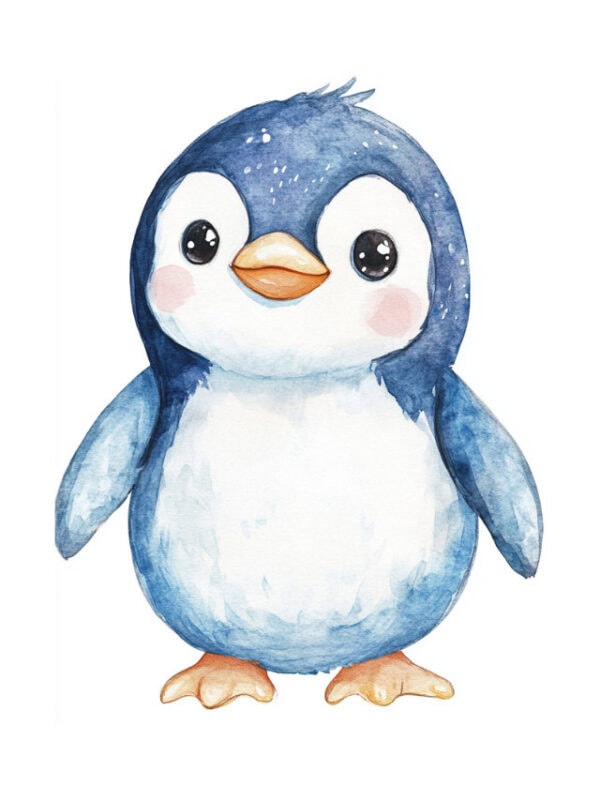
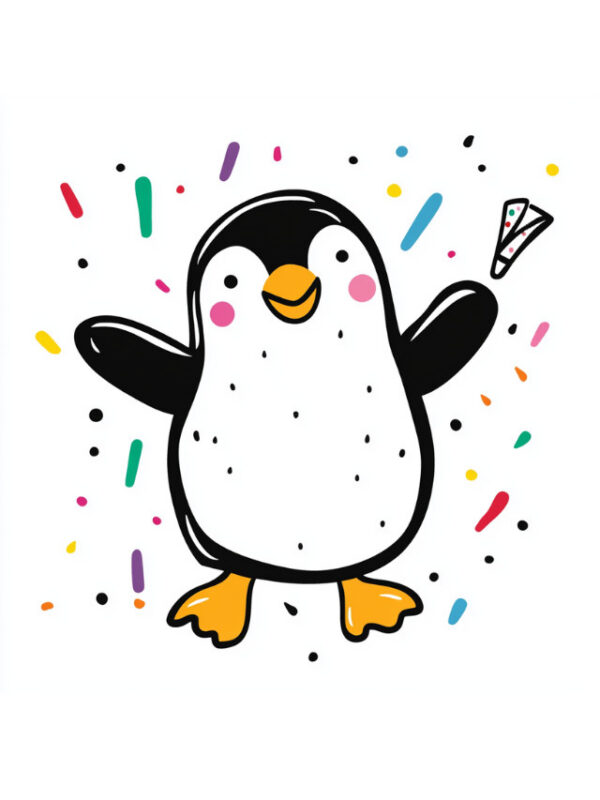
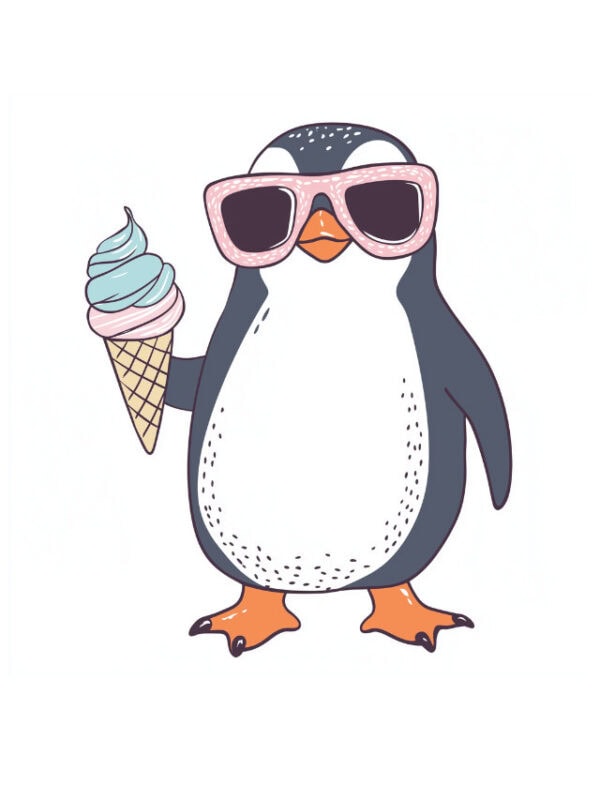

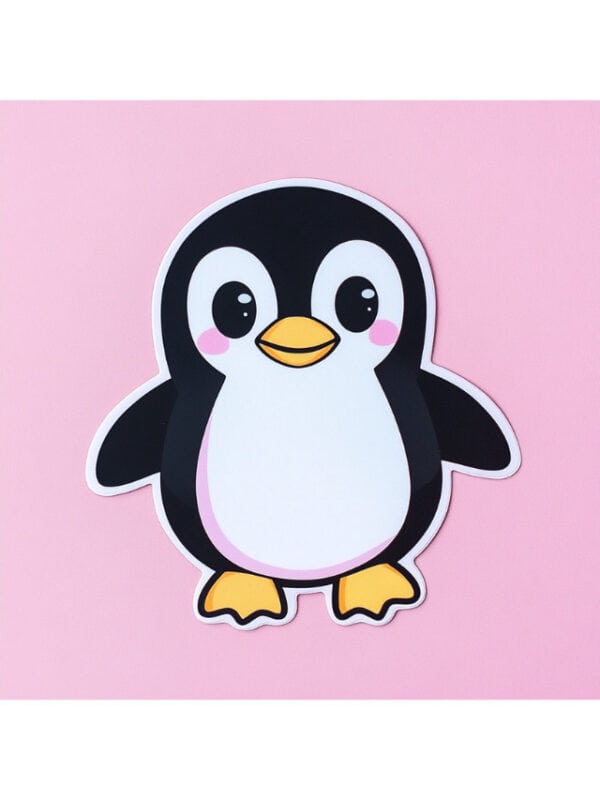
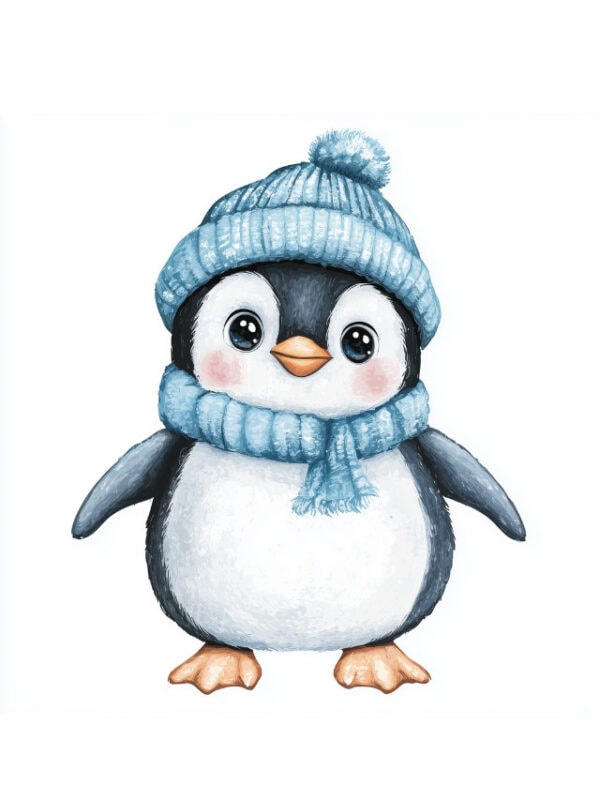
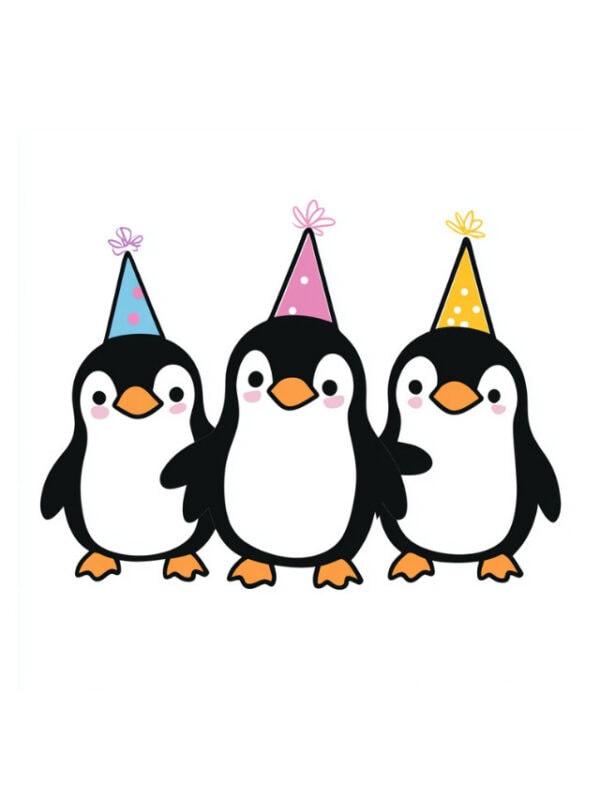
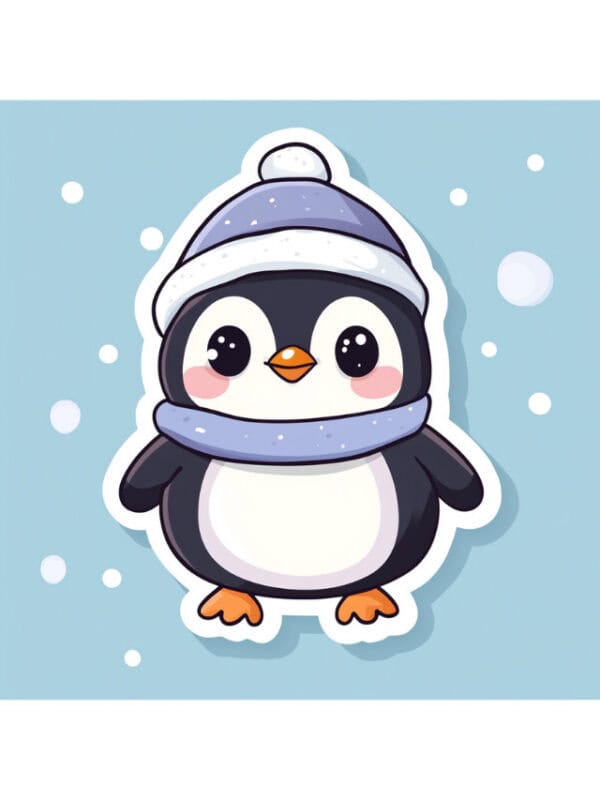
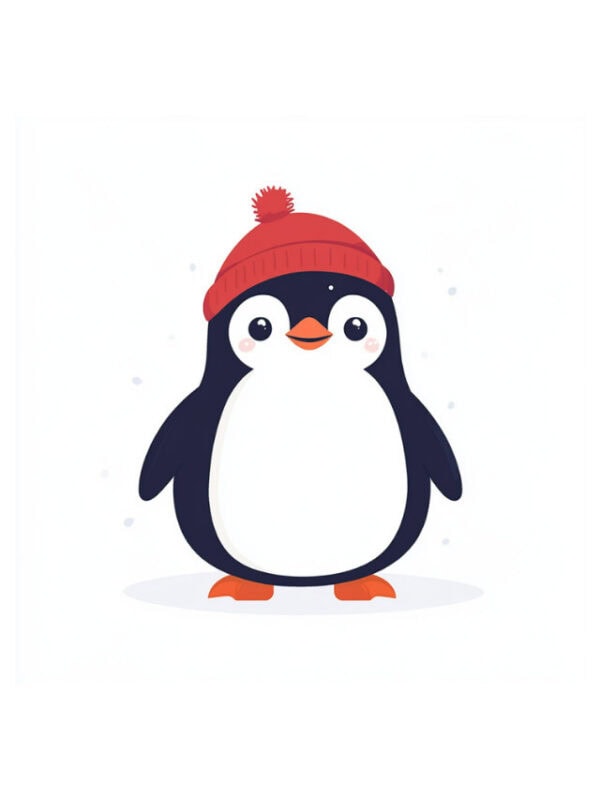
What’s Included?
The graphic set includes:
- 9 colorful penguin SVG illustrations
- 9 SVG cutting outlines
- 9 transparent PNG images
The artwork is centered and prepared with transparent backgrounds, so you don’t have to manually remove a large white area from each graphic.
The different file types serve different purposes, so choose the right one before starting your craft.
Full-Color Illustrations
The colored versions contain the complete illustrations. These work well for digital art and may suit Print Then Cut crafts, depending on your software and settings.
Although they come in SVG format, these colored graphics contain embedded artwork rather than separate editable shapes for every color. They are not intended to be cut as individual colors on separate vinyl layers.
Vector Cutting Outlines
The separate cutting outlines contain simple vector paths around each character.
These SVG vectors are useful when you want to cut a simple animal shape from cardstock, adhesive vinyl, or another compatible material. The outlines do not contain the interior colored details of the original artwork.
Use these outlines when you want a single-color cutout rather than a fully colored character.
Transparent PNG Artwork
The PNG versions contain the colorful illustrations on transparent backgrounds. These are especially useful for printable stickers, greeting cards, party decorations, and other paper crafts.
PNG graphics are also a convenient choice for Print Then Cut because they preserve the color artwork without requiring separate vinyl layers.
Seven Creative Ways to Use the Artwork
These playful graphics suit many winter crafts, especially during the colder months.
Here are some fun ways to use your new artwork.
1. DIY Penguin Stickers
The colorful PNG illustrations can become custom winter stickers. Print the artwork onto sticker paper, then cut around each character with scissors or a compatible cutting machine.
Stick the finished cutouts on a planner, notebook, gift bag, scrapbook, or winter activity folder.
For a coordinated sticker sheet, arrange all nine illustrations on one page.
2. Christmas Tree Ornaments
Turn the winter characters into handmade decorations for the tree. Start with a printed character on sturdy paper, trim its edges, and secure it to a lightweight ornament base.
Make a hole at the top, then thread ribbon or string through it. For extra durability, laminate the printed artwork before cutting it out.
If you enjoy making homemade ornaments, try our penguin popsicle stick ornament craft for another festive idea.
3. Handmade Winter Cards
Use the colorful clip art to make homemade winter greeting cards. Add a character to the front of folded cardstock and include a cheerful message inside.
Pair your card with one of these playful messages:
- Wishing you a season of cozy moments!
- Hope your day is snow wonderful!
- You bring sunshine to snowy days!
- Waddle I do without you?
- Stay cozy, my friend!
Share the finished cards with friends, relatives, teachers, or classmates as a personal winter greeting.
4. Penguin T-Shirts and Tote Bags
The same artwork can add a winter touch to custom shirts and everyday accessories. For a single-color craft, use a cutting outline with compatible heat-transfer vinyl.
To preserve the full-color artwork, you will need a suitable printable transfer method rather than ordinary layered vinyl cutting.
Always follow the instructions for your transfer material, printer, and cutting machine. You can create cute winter shirts, tote bags, or matching family accessories with your favorite character.
5. Winter Classroom Decorations
For a classroom or homeschool space, the printable PNGs work well as seasonal display pieces. Cut out several cardstock prints and place them across your classroom display.
Finish the scene with paper snowflakes, snowy hills, and a seasonal heading.
For a catchy display title, consider:
- Snow Many Bright Ideas in Our Class!
- Waddle We Learn Today?
- Cool Minds, Big Discoveries!
- A Flurry of Great Work!
These decorations also work for winter parties, classroom doors, or homeschool learning spaces.
6. Penguin Gift Tags
Give wrapped presents a winter touch with illustrated gift tags. Open a transparent PNG in your editing program, leaving room for the recipient’s name.
Once the tags are printed on cardstock, trim them to the desired shape. Thread ribbon or twine through a hole at the top, then tie the finished tag onto a present.
These work especially well for Christmas gifts, winter birthdays, and small classroom presents.
7. Penguin Paper Crafts
Use the cutting outlines to make simple animal shapes from cardstock.
Children can decorate the paper shapes with markers, stickers, paper scarves, or other lightweight craft materials.
For another hands-on winter activity, our penguin paper dolls include printable characters and outfits for imaginative play.
How to Get Your Free Penguin Artwork
Getting these illustrations is simple.
Step 1: Find the Request Form
Scroll to the bottom of this post to find the request form. Enter your email on the form and follow the provided directions to receive the artwork.
Step 2: Save the ZIP Folder
Open the download link and save the ZIP folder to your computer. All nine illustrations and their alternate versions are included in the ZIP archive.
Step 3: Extract Your Artwork
Extract the archive first so its contents are ready for your crafting software. Windows users can right-click the saved archive and select the “Extract All” command.
On a Mac, double-clicking the ZIP normally unpacks it automatically. You should now be able to access the cutting outlines and transparent PNG illustrations.
Step 4: Choose a File Type
Select the version that best matches your craft. For printing, choose a transparent PNG or full-color SVG. For cutting a simple shape, use the corresponding cutting outline.
If you’re using a cutting machine, the next section explains how to import the artwork.
Using These Illustrations in Cricut Design Space
This program lets you upload compatible SVG and PNG files for creative activities. The steps vary depending on whether you want to cut a simple shape or print a full-color illustration.
Upload a Cutting Outline
- Open the software and create a new canvas.
- Select “Upload” from the design menu.
- Use “Upload Image” to locate the matching outline on your device.
- Confirm your selection and complete the on-screen prompts to import it.
- Place the uploaded outline in the work area.
- Adjust its size to suit your craft.
- Check the operation settings before proceeding to the cutting mat.
If you want a solid cutout, select one of the cutting outlines. This outline is meant to create a simple cut shape, not individual cuts for each colored feature.
Making Full-Color Stickers
For colorful stickers, use one of the transparent PNG versions.
- Open your Design Space workspace.
- Import the transparent PNG you want to print.
- Insert the illustration onto the canvas.
- Set the dimensions for your sticker layout.
- Choose the appropriate Print Then Cut setup.
- Arrange the illustration on the printable area.
- Send your finished layout to a printer loaded with suitable sticker paper.
- Follow the software instructions to cut around the printed design.
Make sure your PNG has a transparent background before printing so the machine can create the intended cut boundary.
Your Print Then Cut options may vary depending on the cutting machine and software version.
Can These Be Used for Layered Vinyl?
The full-color artwork is not supplied as separate editable layers for each color. For example, you cannot automatically cut the black body, white belly, orange beak, and other details as individually separated vinyl pieces from the colored artwork.
The cutting outlines are intended for simple silhouettes. If you want a layered vinyl penguin, you would need to create or obtain separate vector paths for each color.
Using the Artwork in Silhouette Studio
Silhouette machines are another option for crafting with these illustrations. First, check which edition of the program you have.
SVG importing requires a compatible edition, such as Designer Edition or higher. The free Basic Edition does not normally offer direct SVG import.
Importing a Cutting Outline
- Open a new canvas in Silhouette Studio.
- Use the Open or Merge command to bring the artwork into your workspace.
- Choose an outline SVG from the extracted folder.
- Resize the artwork to fit your craft.
- Go to the cutting settings panel.
- Confirm that the correct outline is selected for cutting.
- Choose your material settings and send the artwork to your machine.
For full-color prints, use a compatible print-and-cut workflow. PNG graphics may be imported, but the software may require additional steps to establish the desired cut line.
Always check the preview before sending the artwork to your machine.
Beginner Cutting Tips
If you’re new to cutting illustrations with a compatible machine, these simple tips can help you get started.
Start With a Simple Shape
The easiest beginner craft is often a single-color penguin cutout.
Choose a simple outline to practice cutting on cardstock. It is an easy way to learn the basic controls before trying more complex layered projects.
Preserve the Original Proportions
Turn on the aspect-ratio lock so both dimensions adjust together. That keeps the character from looking squashed or unusually tall.
Check Your Cut Lines
Take a moment to inspect the on-screen layout before sending it to the machine.
Make sure the machine cuts the intended outline, not an unwanted square or rectangular boundary.
Make a Small Test Cut
If you’re using a new material, start with a test cut before making a larger piece. This is especially helpful when cutting cardstock, adhesive vinyl, or heat-transfer vinyl.
Choose the Right Material
For paper crafts, cardstock works well. For decals or simple cutouts, choose vinyl compatible with your cutting machine.
For high-quality printed artwork, use compatible sticker paper or an appropriate transfer material.
Centering Your Cutting Artwork
Sometimes an illustration appears off-center when you import it into editing software. This can happen when it sits inside a larger canvas with extra blank space around it.
The updated graphics sit closer to the middle of their canvas, leaving less empty space to manage. Check the placement yourself once each illustration is imported.
Aligning Artwork on Your Canvas
- Upload your chosen outline or PNG.
- Place the imported illustration in the working area.
- Select the graphic on the canvas.
- Resize it to your preferred dimensions.
- Use the alignment and positioning controls to place it where you want.
If your layout includes text or other decorations, arrange those elements around the illustration before cutting or printing.
Must the Artwork Be Perfectly Centered?
No. Your artwork does not have to be perfectly centered to import or cut. However, centered artwork is easier to position and resize predictably.
For cutting, the actual paths are more important than whether the illustration looks centered within the original canvas.
Troubleshooting Your Artwork
If you’re having trouble with one of the illustrations, try these solutions.
The Outline Won’t Upload
First, check that the ZIP folder has been extracted. Some crafting programs cannot import an SVG directly from a compressed ZIP folder.
If it still won’t open, verify that your software supports that format. You can also try the PNG version when printing.
A White Background Appears
The updated PNG versions are intended to have transparent backgrounds. If you see white behind the character, check whether that area is part of the illustration or simply how your software displays transparency.
Some programs use a white canvas even when the artwork itself has no background. You can check transparency by placing the graphic over a colored shape.
The Illustration Is Too Small
After importing the artwork, select it and adjust the dimensions. Keep the proportions locked while resizing.
For raster-based graphics, avoid enlarging the artwork beyond a size that maintains acceptable print quality.
The Machine Is Cutting a Rectangle
A rectangular cut boundary may appear when an imported graphic has an opaque background or the software interprets it as a single rectangle.
For a simple silhouette, use the matching cutting outline. For printed stickers, use the transparent PNG and check the cut preview before proceeding.
Can I Change the Colors?
You can use editing software to make visual adjustments to the PNG artwork. However, the colored illustrations don’t contain independently editable color layers.
To create a different color combination as separate cut pieces, you would need a layered vector graphic.
Can I Convert This Artwork to Other File Types?
You can export or convert it using compatible creative software. For example, PNG artwork may be used in programs that support raster graphics.
However, converting a PNG to SVG does not automatically create detailed vector paths. The resulting file’s capabilities depend on the original artwork and conversion process.
Why Penguin Art Works for Winter Crafts
These cute animals are a fun subject for winter crafting because they work well with snowy backgrounds, scarves, hats, snowflakes, and other cold-weather decorations.
These illustrations can be used throughout winter, not just during Christmas. They’re especially cute for classroom decorations, greeting cards, scrapbook pages, and handmade gifts.
If you’re planning an animal-themed unit study, you can also combine these activities with our Christmas penguin coloring pages or penguin handprint craft.
For younger children, printable activities may be easier than crafts requiring a cutting machine.
More Free Penguin Crafts and Winter Printables
If you love these winter animals, there are plenty of other fun activities to try!
Explore these crafts and winter activities from 24 Hour Family.
- Penguin Paper Dolls — Printable characters with outfits for imaginative play.
- Christmas Penguin Paper Plate Craft — Make an adorable winter animal using a paper plate and a free template.
- Penguin Popsicle Stick Ornament Craft — Create a cute ornament for your Christmas tree.
- Penguin Handprint Craft — A fun handprint keepsake for winter.
- Christmas Penguin Coloring Pages — Free coloring sheets featuring festive characters.
- Winter Dot Marker Coloring Pages — Winter-themed activities for preschoolers.
- Free SVG Files for Cricut and Silhouette — Discover more free designs for your crafting projects.
Get Your 9 Free Penguin SVG Files
Ready to create something cute for winter? Choose one of the nine illustrated characters and start planning your next craft!
This free bundle includes colorful artwork, transparent PNG images, and separate vector cutting outlines.
Use the illustrations for winter stickers, handmade cards, classroom decorations, paper crafts, and other creative activities. Simply enter your email address in the form below to receive everything.
These adorable illustrations add winter personality to your handmade crafts. Choose your favorite character, gather your supplies, and enjoy creating something special!
Where can I get the free penguin SVG files?
You can access all nine illustrations through the form at the bottom of this post.
The bundle includes colored artwork, vector cutting outlines, and transparent PNG graphics.
Can I Use These with a Cutting Machine?
Yes, you can import compatible SVG outlines into Cricut Design Space.
Use the outlines for simple shape cutting and the PNG graphics for appropriate full-color Print Then Cut crafts.
Check the artwork in your cutting software before starting.
Will They Work with Silhouette Cameo?
The SVG cutting outlines can be imported using an edition of Silhouette Studio that supports SVG imports.
For the free Basic Edition, check which alternative file types and import workflows are supported.
Is This Bundle Free?
Yes! All nine illustrations are available for personal crafting.
They are not licensed for resale, redistribution, or commercial use.
Are They Layered?
The colored artwork does not contain separate vector layers for each color.
The bundle includes separate cutting outlines for making simple penguin silhouettes.
What Is the Difference Between SVG and PNG?
SVG is a format that can contain vector paths, embedded images, or both.
PNG is a raster format that supports transparent backgrounds.
Here, the outline SVGs contain vector cutting paths, while PNGs provide colored illustrations for printing and digital use.
Can I Use These for Print Then Cut?
The transparent PNGs are the easiest starting point for full-color Print-Then-Cut.
Import the PNG into your cutting software, choose the correct settings, and check the print-and-cut preview before proceeding.
Can I Make Penguin Stickers?
Yes! The colorful PNG artwork is suitable for stickers made with compatible paper and a printer.
You can cut the stickers by hand or use a cutting machine with an appropriate print-and-cut feature.
Can I Make Penguin Shirts?
You can use the vector outlines for single-color heat-transfer vinyl.
For a full-color shirt, you’ll need an appropriate printable transfer method.
The colored graphics are not pre-separated into individual vinyl layers.
Can I Sell Products Made with These Illustrations?
These materials are for personal use only.
Please do not sell the digital artwork, redistribute the graphics, or use them on products for sale without appropriate permission.
Do I Need a Cutting Machine?
No! A cutting machine isn’t required for every craft.
You can use the PNG illustrations to make printed crafts, cards, stickers, decorations, and other creative activities.

I really needed worthing like this !